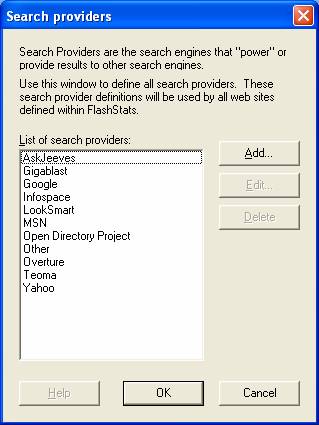
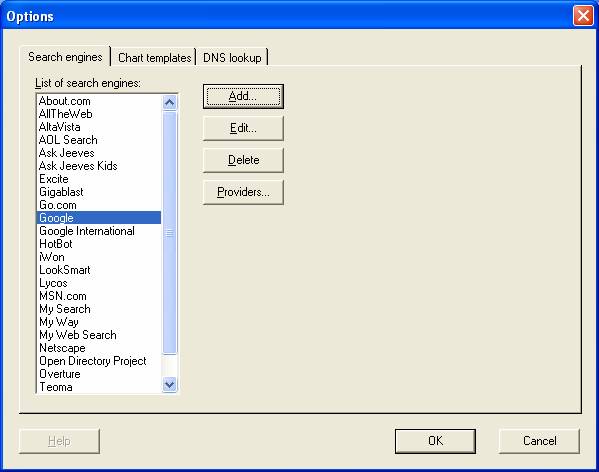
Open the Tools menu and choose Options. Make sure that the Search engines tab is selected. You should see a window that looks like this:
Click the Add... button. The Search engine window will appear:
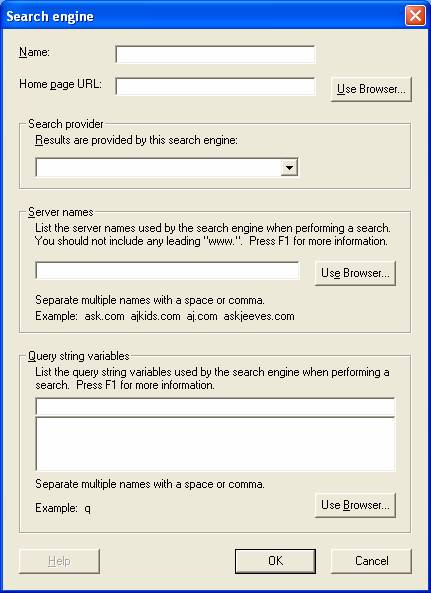
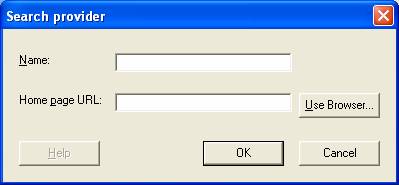
Enter the name and home page URL for the search engine. You may want to click the Use Browser... button to display an Internet Explorer window which you can use to navigate to the search engine's home page. When you close the IE window, the home page and name fields will be filled in.
Specify the search provider used by the search engine. If the provider is not listed, then choose Other for now; you can come back later to change it after you have defined a new search provider.
Enter the search engine's web server host name. You can omit any leading part of the host name, such as "www." or "search." and FlashStats will still match hits from the host name. You can enter multiple possible host names, separated by a comma or a space. Click the Use Browser... button to display an IE window to help navigate to an appropriate page (usually a search results page), and FlashStats will extract the host name from the page's URL.
Specify the variable which the search engine uses to specify the phrase being searched for. If the search engine uses different query string variables in different scenarios you can list them all here, separated by a comma or a space. You can click the Use Browser... button to help figure out the appropriate query string variable. Click Use Browser..., navigate to the search engine, and run a search for any phrase (for example, "FlashStats"). When the search engine has displayed its results, close the popup IE window. FlashStats will display a list of the query string variables that were used in the URL for the search results page. Look for the "name=value" pair which contains the phrase that you searched for (for example, "FlashStats") and click on it; FlashStats will add it to the list of query string variables.
When you are satisfied with the settings in this window, click OK to save the new search engine definition and return to the Options window.