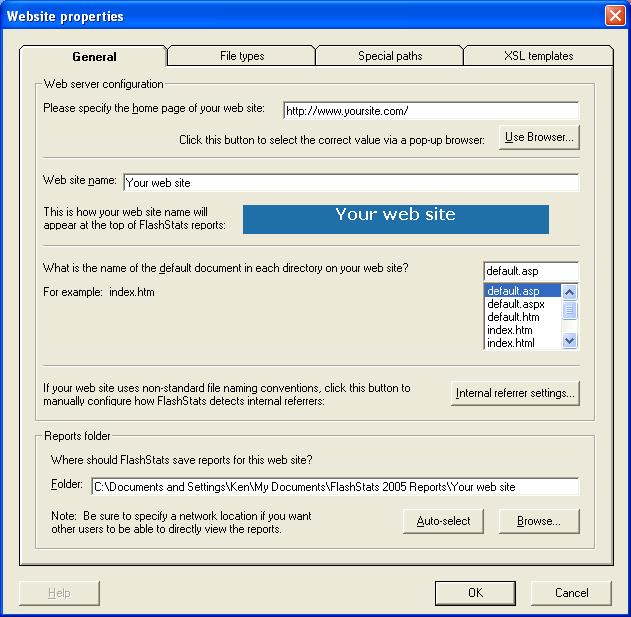

FlashStats 2005 lets you analyze log files from as many different web sites as you would like. Simply define each web site separately within FlashStats, then switch among them as you want to work with them. You can only have one web site open for analysis at a time.
A "web site" defined within FlashStats consists of the following:
Miscellaneous data about the web site, such as the name of the site and its home page URL.
A folder where FlashStats saves reports for the web site.
A list of "file type" definitions (file extensions and the type of file they represent, such as Page, Script, Download, or Media File).
A list of "special paths" (requests which FlashStats should categorize in a specific way).
XSL template files which control the output format of the HTML, Word (.Doc), and Excel (.CSV) files generated by FlashStats.
A set of filters used to control which hits FlashStats includes or excludes in its analysis.
Local copies of any number of "log sets" (log files downloaded from the web server).
You can change your web site settings with the Web site properties window. This window is displayed when you open the Web site menu and either choose New... to create a new web site or choose Properties... to edit the properties for the currently open web site.
The General tab contains the following fields:
Home page URL: Enter the full URL to the home page of your web site. For example, http://www.mysite.com or http://www.bighost.com/~mysite/. Omit any default file name such as index.htm or default.asp.
Web site name: Enter a simple, descriptive name for your web site. This name will appear at the top of reports that FlashStats generates. There is limited space available at the top of these reports, so use the preview to see if the name will fit in the space provided.
Default file name: Enter the name of the default document returned when a hit is requested for a directory (folder) but no file. Common values for this name are index.htm, index.html, or default.asp. You can choose a common value from the provided list or enter a different value.
Internal referrer settings: FlashStats tries to determine if hits have been referred from pages on your own web site or from other web sites. It does this by trying to match the start of the referring page's URL with your known home page URL. By default, FlashStats will use the values provided in the Home Page URL field at the top of this window. Most users will not need to click the Internal referrer settings... button; however, if FlashStats does not seem to be correctly identifying internal referrers then you can click the button and change the values.
Reports folder: Specify the folder where you like FlashStats to save reports for this web site. Each time you analyze your web site's log files and create reports, the new reports will be stored in a sub-folder under the folder specified here. You can click the Auto-select button to have FlashStats choose a folder based upon the name of your web site. If you want the reports to be easily viewable by other users on your network then you should choose a location to which all users will have easy access.
FlashStats needs to know about each type of file used on your web site so that it can add each hit to the appropriate report (Top Page Views, Top Images, Top Downloads, etc). Files are categorized based upon their extension.
For each file extension that it might encounter, FlashStats needs to know what type of file it represents. In addition, FlashStats needs to know if the file extension could be used by a script on your web site. For example, the extension .htm is usually used to indicate an HTML web page; FlashStats calls this file type a Page. Scripts usually do not use an .htm extension, so by default FlashStats is configured so that .htm files cannot be scripts. Likewise, files with an extension of .jpg are considered to be files of type Image, and cannot be scripts. Files with an extension of .cgi or .pl are almost always scripts, so their default file type is Script.
For each hit that it analyzes, FlashStats assigns the file type which matches the file's extension. However, if the file type been defined that it can be a script and the hit request also includes a question mark (used by some scripts), then the hit will be considered to be of type Script.
The table below shows some examples of various ways to configure some common file types and how FlashStats would treat matching requests. (Keep in mind that each extension can be defined only one way at any given time; the table includes multiple combinations of values only to show what would happen under different configurations.)
| Extension | File type | Can be script? | File requested | Resulting type and reason |
| .asp | Page | Yes | /default.asp | Page (used file type, no question mark) |
| .asp | Page | No | /default.asp | Page (used file type) |
| .asp | Page | Yes | /default.asp?id=1234 | Script (found "?", can be script) |
| .asp | Page | No | /default.asp?id=1234 | Page (cannot be script) |
| .asp | Script | Yes (always) | /scripts/register.asp | Script (used file type, no "?" needed) |
| .jpg | Image | Yes | /images/webbug.jpg?id=1234 | Script (found "?", can be script) |
| .jpg | Image | No | /images/webbug.jpg?id=1234 | Image (cannot be script) |
You can use the File types tab to configure the types of files used on your web site. You can easily modify this list by using the Add..., Edit..., and Delete buttons to make any desired changes.
You can click the Defaults... button to display a window which will help you to choose sets of commonly-used file types.
Tip: By default, when you define a new web site, FlashStats will use a large list of common file types. You can improve FlashStats' performance by deleting unnecessary file type definitions.
When analyzing log files, FlashStats categorizes each hit based upon the file type definitions discussed above. However, sometimes you may need to tell FlashStats that certain files are of a different file type than would normally be the case. You can use the Special paths tab to define any such special cases.
The Special paths tab is a good place to list attack paths. A good strategy is to view a Top Other Files report, and add anything that looks suspicious to the Special paths tab as an attack.
Here is a list of common attacks that you may want to define:
For example, the file extension .exe is defined to be of type Download by default. However, you may also run some scripts on your web site which are implemented in .exe files in the /scripts directory, so requests for those scripts should show up on the Top Scripts report rather than the Top Downloads report. To solve this problem, you could define a special path where /scripts/*.exe is defined to be of type Script.
In addition to these values defined for each web site, FlashStats also has some "global" values which are defined for use by all web sites. See the Global settings chapter for more information on configuring these global options.