
Contents
- Previous chapter
- Next chapter
Search engines
FlashStats 2005 offers comprehensive analysis of hits that your site receives from search engines.
In addition to analysis of search engines (such as Google and Yahoo!), FlashStats
offers analysis of "search providers." Search providers are those search engines which
provide results to other search engines. For example, Google is a search engine as well as a search
provider (Google provides results to about.com, AOL Search, and others). Tracking hits from search
providers rather than search engines can help when you are trying to determine if your web site is
listed in the most popular search indices.
How to define a new search engine
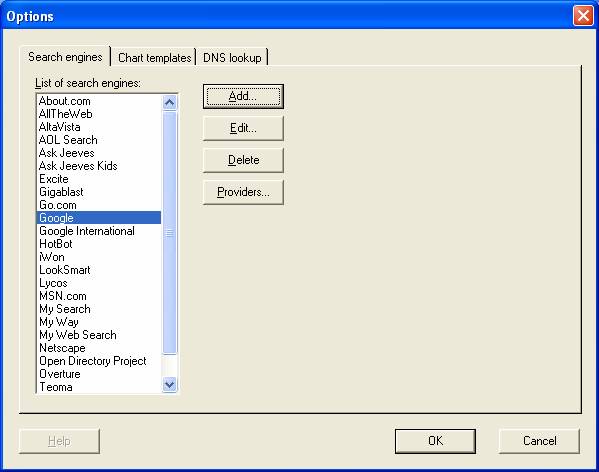
You can display the list of search engines that FlashStats uses by opening the Tools
menu and choosing Options. The Search engines tab shows all of the search engines
defined within FlashStats, as well as a button to let you access the list of search providers.
To define a new search engine, follow these steps:
Open the Tools menu and choose Options. Make sure that the Search engines
tab is selected. You should see a window that looks like this:
Click the Add... button. The Search engine window will appear:
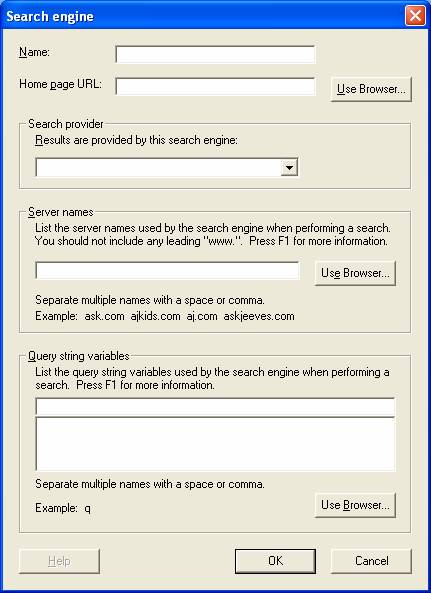
Enter the name and home page URL for the search engine. You may want to click the
Use Browser... button to display an Internet Explorer window which you can use to
navigate to the search engine's home page. When you close the IE window, the home page and
name fields will be filled in.
Specify the search provider used by the search engine. If the provider is not listed,
then choose Other for now; you can come back later to change it after you have defined
a new search provider.
Enter the search engine's web server host name. You can omit any leading part of the host
name, such as "www." or "search." and FlashStats will still match hits from the host name. You
can enter multiple possible host names, separated by a comma or a space. Click the Use Browser...
button to display an IE window to help navigate to an appropriate page (usually a search results page),
and FlashStats will extract the host name from the page's URL.
Specify the variable which the search engine uses to specify the phrase being searched for.
If the search engine uses different query string variables in different scenarios you can list them
all here, separated by a comma or a space. You can click the Use Browser... button to help
figure out the appropriate query string variable. Click Use Browser..., navigate to the search
engine, and run a search for any phrase (for example, "FlashStats"). When the search engine has
displayed its results, close the popup IE window. FlashStats will display a list of the query string
variables that were used in the URL for the search results page. Look for the "name=value" pair which
contains the phrase that you searched for (for example, "FlashStats") and click on it; FlashStats will
add it to the list of query string variables.
When you are satisfied with the settings in this window, click OK to save the new search
engine definition and return to the Options window.
Ordering search engine definitions
You can move any search engine defintion up or down in the list by using the Move up
and Move down buttons. FlashStats analyzes the list of search engines in the order
given. If you have two related search engine defintions, one very specific and one more
general (usually using an asterisk to match any characters), then you should order the specific
search engine definition above the more general definition. This will ensure that the specific
case is matched rather than always matching the general definition.
For example, the definition for Google matches the server name google.com. The
definition for Google International matches any name with the pattern *.google.*.
It is important to have the Google definition above the Google International definition,
so that requests coming from www.google.com will match the Google definition, and
requests coming from www.google.ca will match Google International. If the definitions
were in the other order, then requests from www.google.com would match the Google
International definition when tested, and the plain Google definition would never be tested.
Using the alternate method
In order to create its search reports, FlashStats analyzes the referring URL that
accompanies the first hit to your web site. The vast majority of search engines pass the
search phrase via a query string; for example, http://www.google.com/search?q=Phrase.
However, a few search engines pass the search phrase as an earlier part of the URL.
For example, the A9.com search engine
passes the search phrase as the path, like this: http://a9.com/Phrase.
Likewise, Excite uses a URL like this:
http://msxml.excite.com/info.xcite/search/web/Phrase.
FlashStats can analyze referrerals from these types of search engines. To define a
search engine that passes the search phrase in the URL path instead of query string,
click on Settings... button at the bottom of the Search engine window. This
will display the Alternate method settings window:
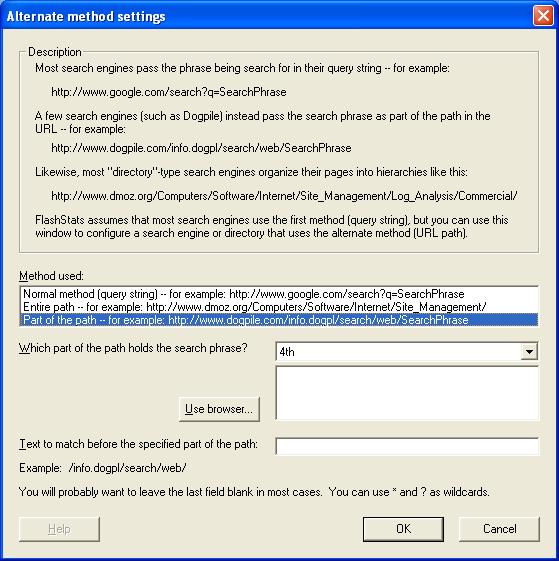
In the Method used list, choose Part of the path. In the Which part of the
path holds the search phrase? list, choose the appropriate part of the path. You can
click the Use browser... button to open an Internet Explorer window to navigate to the
search engine, run a sample query, then close the browser to return to this FlashStats
configuration window and select the desired portion from the list box. Finally, if there
is any leading text that you want to require in the path, you can enter it in the Text to
match before the specified part of the path edit field. Any request which does not
contain the text you specify will not match the search engine definition. (In most cases
you can just leave this field blank.)
Defining human-organized directories
FlashStats also lets you report on referrals from "directories" which are organized by
a human staff, such as Yahoo's directory or the DMOZ Open Directory.
To enable analysis of referrals from such a directory, create a new search engine
definition and click the Settings... button to display the Alternate method
settings window as described above. In the first list, choose Entire path.
How to define a new search provider
Use this procedure to define a new search provider.
Open the Tools menu and choose Options. Make sure that the Search engines
tab is selected.
Click the Providers... button. The Search providers window will appear:
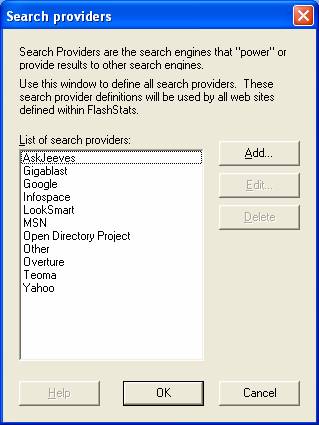
Click the Add... button. The Search provider window will appear:
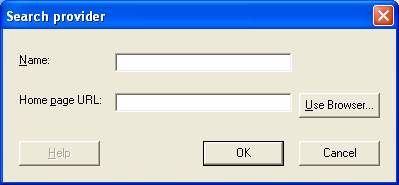
Enter the name of the search provider and the URL of its home page. You can click the
Use Browser... button to display a popup Internet Explorer window to help select these
two values.
Click OK when you are done.
Beta 9
Last modified: 11/15/05